기존에 포스트했던 내용과 중복되는 내용인지 app.manifest를 사용한다면 별개로 설정을 해줘야하는지는 확인이 필요하다.
c# ApplicationHighDpiMode 고해상도에서 선명하게
해상도라고 하기에는 애매한 C#의 WinForms 혹은 WPF로 생성된 응용 프로그램을 높은 DPI 디스플레이에서 흐릿하게 보일 경우 선명하게 보이게 하기 위해 들어가는 옵션이라고 이해했다. 마이크로소
austar.tistory.com
애플리케이션 매니페스트를 사용할 경우 DPI를 설정하는 옵션이 하단에 존재한다.
<?xml version="1.0" encoding="utf-8"?>
<assembly manifestVersion="1.0" xmlns="urn:schemas-microsoft-com:asm.v1">
  <assemblyIdentity version="1.0.0.0" name="MyApplication.app"/>
  <trustInfo xmlns="urn:schemas-microsoft-com:asm.v2">
    <security>
      <requestedPrivileges xmlns="urn:schemas-microsoft-com:asm.v3">
        <!-- UAC 매니페스트 옵션
             Windows 사용자 계정 컨트롤 수준을 변경하려면
             requestedExecutionLevel 노드를 다음 중 하나로 바꿉니다.

        <requestedExecutionLevel  level="asInvoker" uiAccess="false" />
        <requestedExecutionLevel  level="requireAdministrator" uiAccess="false" />
        <requestedExecutionLevel  level="highestAvailable" uiAccess="false" />

            requestedExecutionLevel 요소를 지정하면 파일 및 레지스트리 가상화를 사용하지 않습니다.
            이전 버전과의 호환성을 위해 애플리케이션에 가상화가 필요한 경우
            이 요소를 제거합니다.
        -->
        <requestedExecutionLevel level="requireAdministrator" uiAccess="false" />
      </requestedPrivileges>
    </security>
  </trustInfo>

  <compatibility xmlns="urn:schemas-microsoft-com:compatibility.v1">
    <application>
      <!-- 이 애플리케이션이 테스트되고 함께 작동하도록 설계된 Windows 버전
           목록입니다. 해당 요소의 주석 처리를 제거하면 Windows에서
           호환 가능성이 가장 큰 환경을 자동으로 선택합니다. -->

      <!-- Windows Vista -->
      <!--<supportedOS Id="{e2011457-1546-43c5-a5fe-008deee3d3f0}" />-->

      <!-- Windows 7 -->
      <!--<supportedOS Id="{35138b9a-5d96-4fbd-8e2d-a2440225f93a}" />-->

      <!-- Windows 8 -->
      <!--<supportedOS Id="{4a2f28e3-53b9-4441-ba9c-d69d4a4a6e38}" />-->

      <!-- Windows 8.1 -->
      <!--<supportedOS Id="{1f676c76-80e1-4239-95bb-83d0f6d0da78}" />-->

      <!-- Windows 10 -->
      <!--<supportedOS Id="{8e0f7a12-bfb3-4fe8-b9a5-48fd50a15a9a}" />-->

    </application>
  </compatibility>

  <!-- 애플리케이션이 DPI를 인식하며 높은 DPI에서 Windows가 자동으로 스케일링하지
       않음을 나타냅니다. WPF(Windows Presentation Foundation) 애플리케이션은 자동으로 DPI를 인식하며
       옵트인할 필요가 없습니다. 이 설정에 옵트인한 .NET Framework 4.6을 대상으로 하는
       Windows Forms 애플리케이션은 app.config에서 'EnableWindowsFormsHighDpiAutoResizing' 설정도 'true'로 설정해야 합니다.

       애플리케이션이 긴 경로를 인식하도록 설정합니다. https://docs.microsoft.com/windows/win32/fileio/maximum-file-path-limitation을 참조하세요. -->
  <!--
  <application xmlns="urn:schemas-microsoft-com:asm.v3">
    <windowsSettings>
      <dpiAware xmlns="http://schemas.microsoft.com/SMI/2005/WindowsSettings">true</dpiAware>
      <longPathAware xmlns="http://schemas.microsoft.com/SMI/2016/WindowsSettings">true</longPathAware>
    </windowsSettings>
  </application>
  -->

  <!-- Windows 공용 컨트롤 및 대화 상자의 테마 사용(Windows XP 이상) -->
  <!--
  <dependency>
    <dependentAssembly>
      <assemblyIdentity
          type="win32"
          name="Microsoft.Windows.Common-Controls"
          version="6.0.0.0"
          processorArchitecture="*"
          publicKeyToken="6595b64144ccf1df"
          language="*"
        />
    </dependentAssembly>
  </dependency>
  -->

</assembly>
상단 전문에서 현재 이야기 하고자하는 내용을 빼면 다음 내용에 해당한다.
  <!-- 애플리케이션이 DPI를 인식하며 높은 DPI에서 Windows가 자동으로 스케일링하지
       않음을 나타냅니다. WPF(Windows Presentation Foundation) 애플리케이션은 자동으로 DPI를 인식하며
       옵트인할 필요가 없습니다. 이 설정에 옵트인한 .NET Framework 4.6을 대상으로 하는
       Windows Forms 애플리케이션은 app.config에서 'EnableWindowsFormsHighDpiAutoResizing' 설정도 'true'로 설정해야 합니다.

       애플리케이션이 긴 경로를 인식하도록 설정합니다. https://docs.microsoft.com/windows/win32/fileio/maximum-file-path-limitation을 참조하세요. -->
  <!--
  <application xmlns="urn:schemas-microsoft-com:asm.v3">
    <windowsSettings>
      <dpiAware xmlns="http://schemas.microsoft.com/SMI/2005/WindowsSettings">true</dpiAware>
      <longPathAware xmlns="http://schemas.microsoft.com/SMI/2016/WindowsSettings">true</longPathAware>
    </windowsSettings>
  </application>
  -->
해당 주석 내용의 상단 마이크로소프트 문서 내용을 보자면 이전에 설정했던 DPI 설정을 매니페스트 파일에서 한번 더 진행하도록 말하며 문서의 설명을 현재 설정에 적용하면 다음과 같이 된다.
프로세스에 대한 기본 DPI 인식 설정(Windows) - Win32 apps
자세한 정보: 프로세스에 대한 기본 DPI 인식 설정
learn.microsoft.com
<?xml version="1.0" encoding="UTF-8" standalone="yes"?>
<assembly xmlns="urn:schemas-microsoft-com:asm.v1" manifestVersion="1.0" xmlns:asmv3="urn:schemas-microsoft-com:asm.v3">
  <asmv3:application>
    <asmv3:windowsSettings>
      <dpiAware xmlns="http://schemas.microsoft.com/SMI/2005/WindowsSettings">true</dpiAware>
      <dpiAwareness xmlns="http://schemas.microsoft.com/SMI/2016/WindowsSettings">PerMonitorV2</dpiAwareness>
    </asmv3:windowsSettings>
  </asmv3:application>
</assembly>
해당 소스는 마이크로 소프트 문서에서 지원하는 샘플 소스이다.
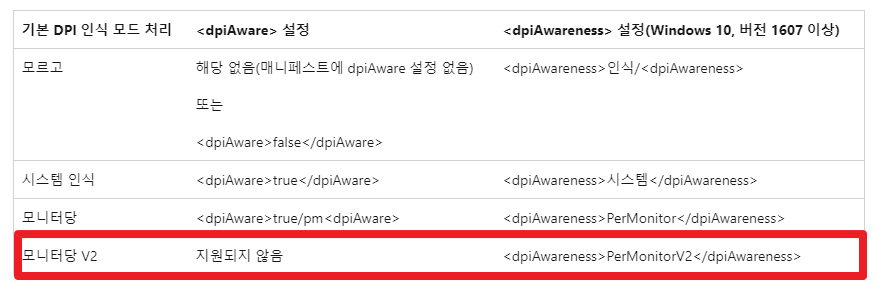
하지만 해당 문서에 있는 표를 보면 PerMonitorV2 옵션은 dpiAware 태그를 지원하지 않는다고 나온다.
  <application xmlns="urn:schemas-microsoft-com:asm.v3">
    <windowsSettings>
      <dpiAwareness xmlns="http://schemas.microsoft.com/SMI/2016/WindowsSettings">PerMonitorV2</dpiAwareness>
    </windowsSettings>
  </application>
따라서 해당 샘플 소스를 토대로 현재 사용중인 소스에 적용하면 다음과 같은 형태가 된다.
PerMonitorV2 옵션은 dpiAware 태그를 지원하지 않기 때문에 dpiAwareness 태그만 적용을 한 모습니다.
프로젝트 설정에서 ApplicationHighDpiMode 태그를 통해 dpi 설정을 했다고 해도 매니페스트를 사용했을 경우에 적용하는 옵션이 추가로 나오기 때문에 혹시 모르는 사태를 대비해서 양쪽 모두 설정해 주는것이 좋을 것 같다.
'c# > helper' 카테고리의 다른 글
| c# BaseOutputPath 빌드 후 출력 경로 설정 (0) | 2024.04.23 |
|---|---|
| c# 프로젝트 Nullable 컨텍스트 경고 수준 설정 (0) | 2024.04.23 |
| c# ApplicationManifest 관리자 권한 설정 (0) | 2024.04.22 |
| c# ApplicationHighDpiMode 고해상도에서 선명하게 (0) | 2024.04.22 |
| c# WPF 태블릿 스타일러스 입력 비활성 (0) | 2024.04.05 |